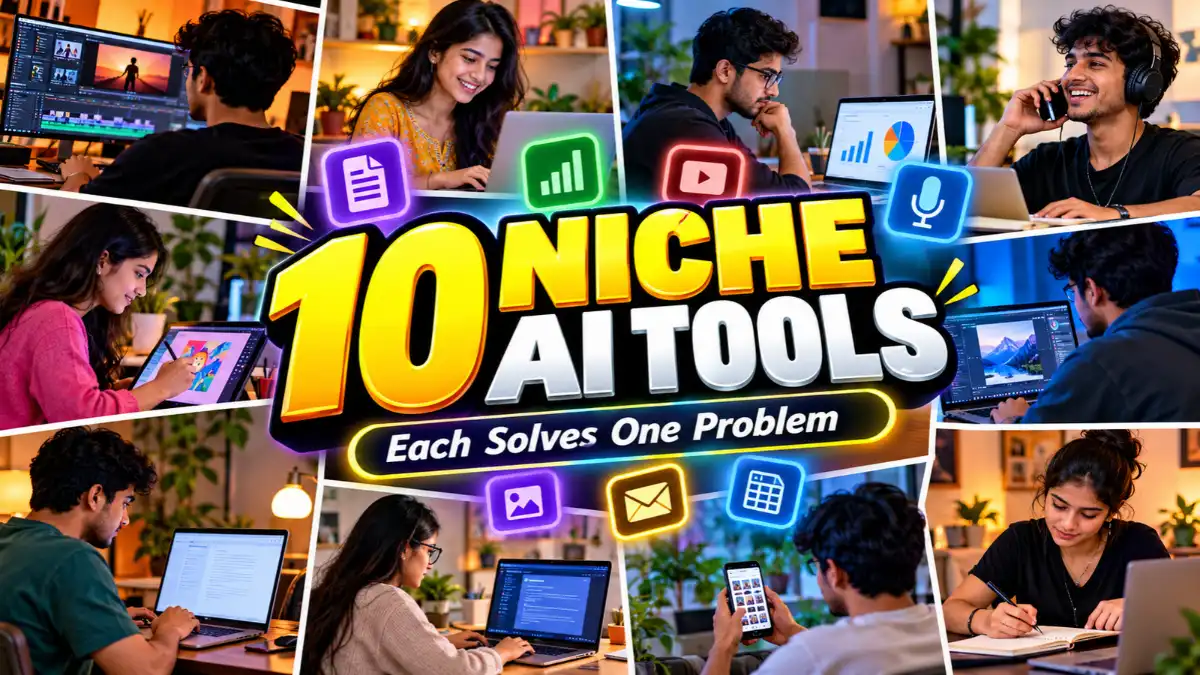
Most “best AI tools” lists repeat the same big chatbots. You already know those. This list is different: ten lesser-known AI tools that each do one job well, such as reading research papers, turning text into diagrams, cleaning up call audio or sharpening a blurry image.
Pick the problem you have, then use the matching tool. Free plans, limits and prices change often, so check each tool’s official site before you pay.
Quick Look: Problem and Tool
- Reading and comparing research papers: Elicit
- Turning text into diagrams and infographics: Napkin AI
- Analyzing a spreadsheet without formulas: Julius AI
- Cutting long videos into short clips: Opus Clip
- Product photos with clean backgrounds: Photoroom
- Background noise on calls: Krisp
- Enlarging low-resolution images: Upscayl
- Email overload: Fyxer
- Missed phone calls: Vapi
- Finding information buried in work apps: Glean
Top 10 Trending AI Tools
1. Elicit: For Reading Research Papers Faster

The problem: A literature review means reading dozens of papers just to find the few that matter.
Elicit is an AI research assistant for academic papers. You describe a research question in plain language instead of exact keywords. It finds relevant papers and pulls details such as methods, sample size and findings into a comparison table, so you can scan many papers at once.
Best for: students, researchers and anyone doing a literature review.
Keep in mind: it summarizes what papers say. It does not judge whether a study is good, so you still need to read the important ones yourself. It also covers academic papers, not general web or news.
2. Napkin AI: For Turning Text into Diagrams
The problem: You have a clear idea in words but no time or design skill to draw it.
Paste a paragraph into Napkin AI and it suggests visuals such as flowcharts, mind maps and infographics. You can edit colors, icons and layout, then export to PNG, SVG, PDF or PowerPoint. Structured text with clear steps or bullets tends to give better results.

Best for: bloggers, teachers and anyone making slides or explainers.
Keep in mind: there is a free plan, but exports may carry a small watermark. Check the current plan details.
3. Julius AI: For Analyzing Spreadsheets in Plain English
The problem: You have a large Excel or CSV file and no idea which formula or chart to use.
Upload a file or connect a Google Sheet, then ask questions like “which month had the lowest sales?” Julius runs the analysis and makes charts. It shows the code it wrote, so you can see how it reached an answer.
Best for: small business owners, students and marketers who work with data but do not code.
Keep in mind: it can misread an unclear question and run the wrong analysis, so ask specific questions and check the result.

4. Opus Clip: For Turning Long Videos into Short Clips
The problem: You have a long podcast, interview or webinar, and cutting it into Reels or Shorts takes hours.
Opus Clip scans a long video, picks the most engaging moments and turns them into vertical clips with captions and automatic reframing. It also gives each clip a score for viral potential, which is a guide, not a promise.
Best for: podcasters, YouTubers, coaches and course creators.
Keep in mind: the free plan has credit limits, and you may need to polish clips in another editor if you want fine control.
5. Photoroom: For Clean Product Photos
The problem: A product shot taken at home looks messy, and a studio is expensive.

Photoroom removes backgrounds, adds AI-generated backgrounds, and can place a product in a realistic scene. It also supports batch editing, which helps when you have many listings to finish.
Best for: online sellers, small shops and anyone who sells on marketplaces.
Keep in mind: it is focused on product and e-commerce images. Bulk use usually needs a paid plan.
6. Krisp: For Noise-Free Calls
The problem: Fans, traffic, barking dogs and keyboard clicks ruin your calls.
Krisp sits between your microphone and apps like Zoom, Google Meet or Teams. It filters background noise and echo from your voice and from the people you listen to. It also offers meeting transcription and notes.
Best for: remote workers, freelancers, students and call-center teams.
Keep in mind: it is a desktop app for Mac and Windows, and the free plan has daily limits.
7. Upscayl: For Enlarging Low-Resolution Images
The problem: A small or pixelated image looks bad when you enlarge it.
Upscayl is a free, open-source app for Windows, macOS and Linux. It runs on your own computer and uses AI models to enlarge images and add plausible detail. It supports batch upscaling and lets you pick different models. This makes it useful when you want a sharper, larger version of an image you already have.
Best for: designers, photographers and creators who want higher-resolution images without paying per image.
Keep in mind: it enlarges and enhances, but it cannot fix a photo that is out of focus or heavily blurred. It also needs a decent graphics card and may not work on most integrated graphics or CPU-only setups.
8. Fyxer: For Email Overload
The problem: You spend too long sorting email and writing routine replies.
Fyxer connects to Gmail or Outlook, sorts your inbox by priority and drafts replies in your writing style. It can also join meetings to take notes and prepare follow-ups. Drafts wait for your review, so you stay in control of what gets sent.
Best for: busy professionals, founders and freelancers who handle many client emails.
Keep in mind: it is a paid tool with a free trial. Plans started around $30 a month on its site, so confirm current pricing.
9. Vapi: For Calls You Cannot Answer
The problem: A small business loses leads when nobody picks up the phone after hours.
Vapi is a platform for building AI voice agents that answer and make phone calls. People use it for AI receptionists, appointment booking, FAQs and reminder calls. It connects speech recognition, an AI model and a voice into one phone conversation.
Best for: clinics, salons, agencies and developers building phone features.
Keep in mind: it takes setup, careful testing and a clear script. Tell callers they are talking to an AI where the law or good practice requires it.
10. Glean: For Finding Information Across Work Apps
The problem: The answer is somewhere in Slack, Drive, email or a ticket, but nobody remembers where.
Glean is an AI search tool for companies. It searches across connected work apps such as Slack, Google Drive, Jira and email, so employees can find specific information from one place.
Best for: teams and organizations with a lot of scattered internal knowledge.
Keep in mind: it is built for companies, not individual users, so it will not suit most solo creators.
How to Choose the Right Tool
- Name the problem first. If you cannot describe it in one sentence, you are not ready to pick a tool.
- Try the free plan on a real task. Use your own file, video or image, not a demo.
- Check the limits. Credits, watermarks and export options decide whether a free plan is enough.
- Review the output. AI can misread data, miss context or add details that were not there.
Common Mistakes
- Signing up for many tools at once instead of fixing one problem at a time.
- Trusting AI summaries or analysis without checking the source.
- Uploading private or client data without reading the tool’s privacy policy.
- Expecting upscaling or enhancement to rescue a badly blurred original.
Frequently Asked Questions
Are these AI tools free?
Some have free plans or free versions with limits, such as Napkin AI, Opus Clip, Photoroom, Krisp and Upscayl. Others, like Fyxer, are paid with a trial. Plans change, so check each official site.
Which tool is best for creators?
Opus Clip for repurposing video, Napkin AI for visuals, Photoroom for product images and Upscayl for sharper images.
Which tool is best for students?
Elicit for finding and comparing papers, and Julius AI for working with data.
Why choose a niche tool over a general chatbot?
A focused tool is built around one workflow, so it often needs less setup and fewer instructions. A general chatbot is still a good starting point when you are not sure what you need.

Hi, I’m Deepak Verma. I run MKEdit because I got a little obsessed with how good AI photo prompts can look when they’re written properly and paired with the right AI tools to generate high-quality images. Everything you see here, I’ve generated and tested myself first. If it’s on the site, it’s because it actually gave a good result — not just a random idea I typed once